(not a HNSO/HR/scheduler-type person? Check out our guide for Refs and NSOs.)
Setting up for scrimmage and game staffing in Skate
Skate helps you turn a pile of signups, role preferences, and last-minute changes into working rosters, week in and week out.
You’ll do a few things just once, and then you’ll be on your way to using Skate to manage officials’ staffing: for practices, scrimmages, semi-formal friends-and-family game days, high-level events, and everything in between.
This guide takes you through the steps.
-
Create your league
Go to https://skate.davoda.com/signup and create your account. It’s free, yes, free.
You can use your Google or Facebook login, or create a username and password.
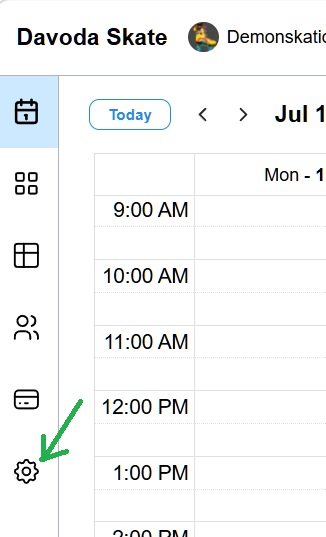
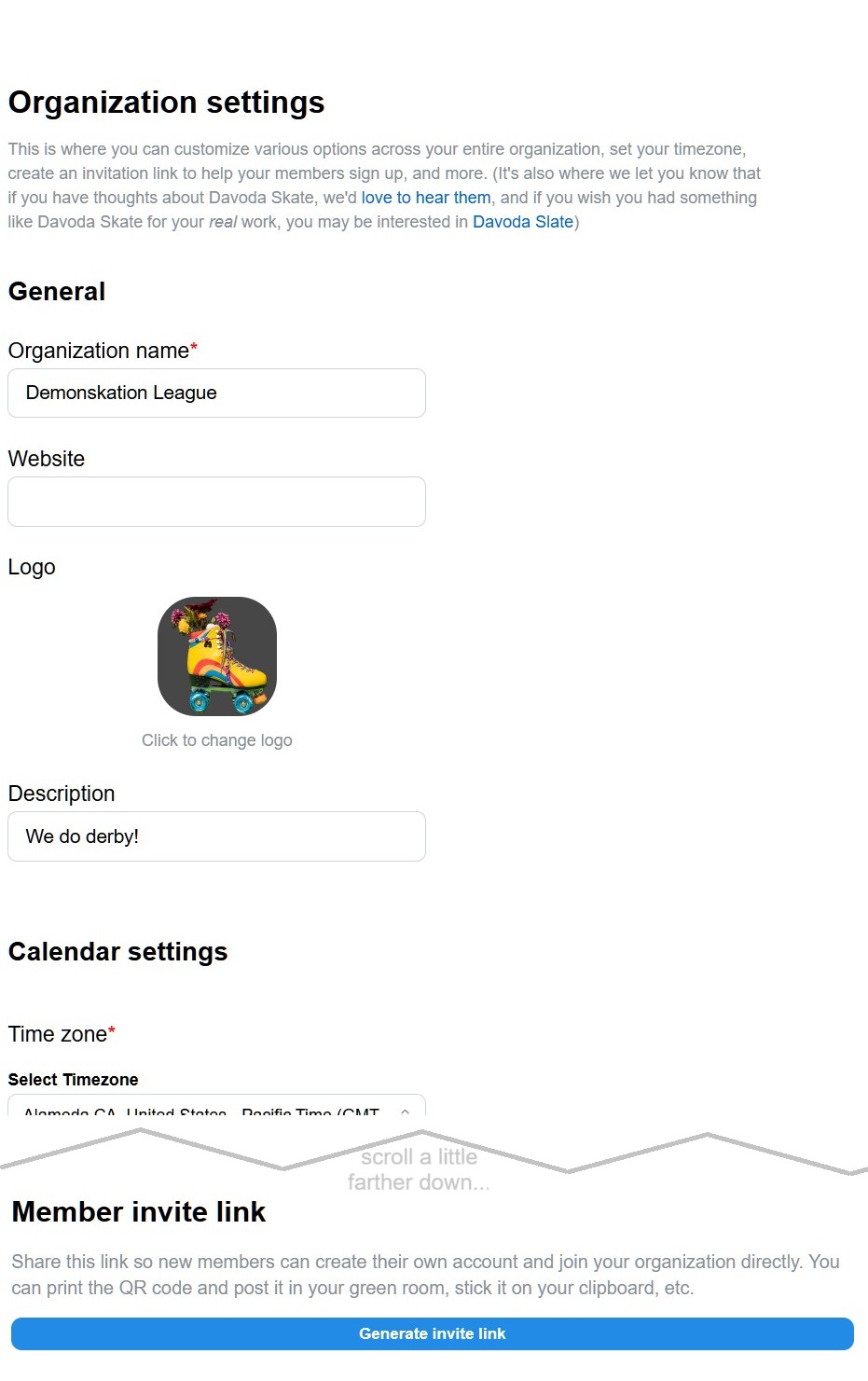
After you’ve created your league, you can go to the Settings page to add your logo, set your timezone and the first day of the week for your calendar. (Our default is Monday. This puts the upcoming Saturday and Sunday in the same week view, which is nice for derby.)
Pro tip: From Settings you can also generate an invite link and QR code to make it easy for your officials to join your league. We’ll talk about that in just a bit.
Create your league ...then go to Settings ... where you can set your timezone
and generate an invite link and QR code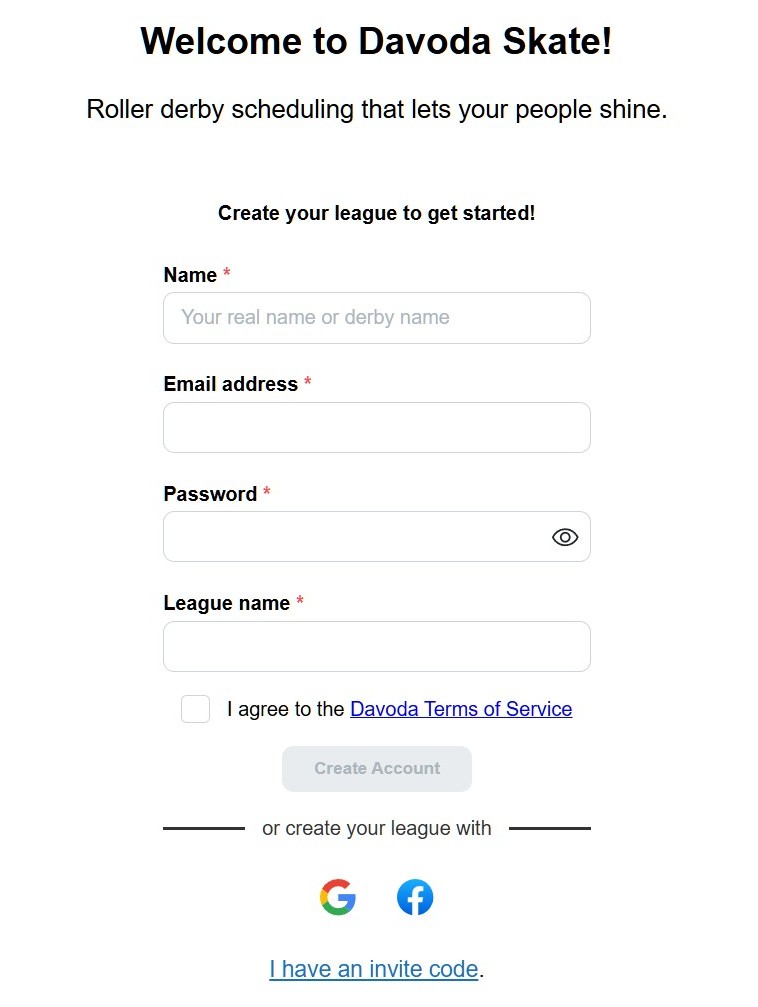
-
Create some events
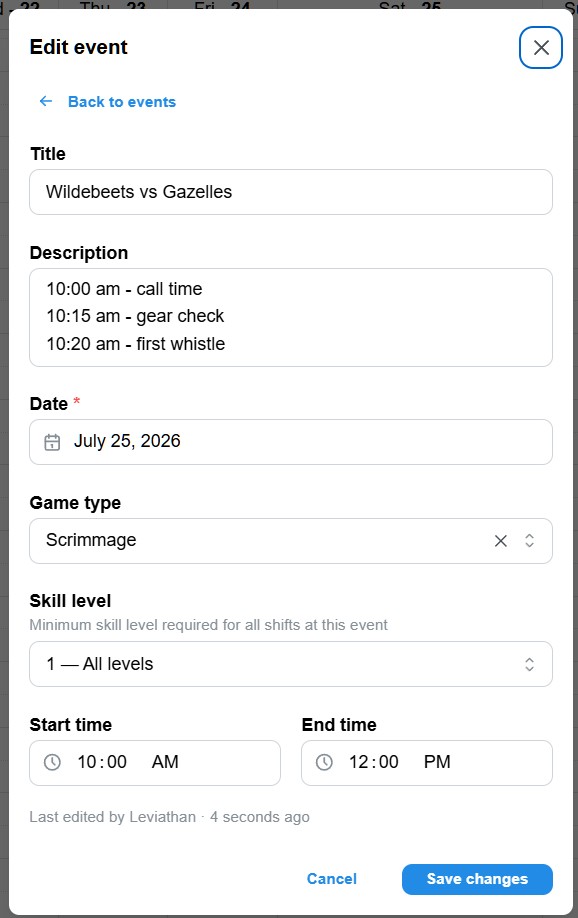
Start by setting up a few upcoming games or scrimmages you need officials for. From the weekly calendar, click and drag the time you want an event, and fill in the details: teams, call time, whether there’s a hard stop, etc. (You can also add an event from the “Manage events” button on the top nav bar.)
(If you set an event’s Skill Level, Skate will only assign officials to a role when they have that level skill or higher. You might set different skill levels for a positional scrimmage and a full-contact game, for example.)
Drag times out on the calendar ...then fill in the event details 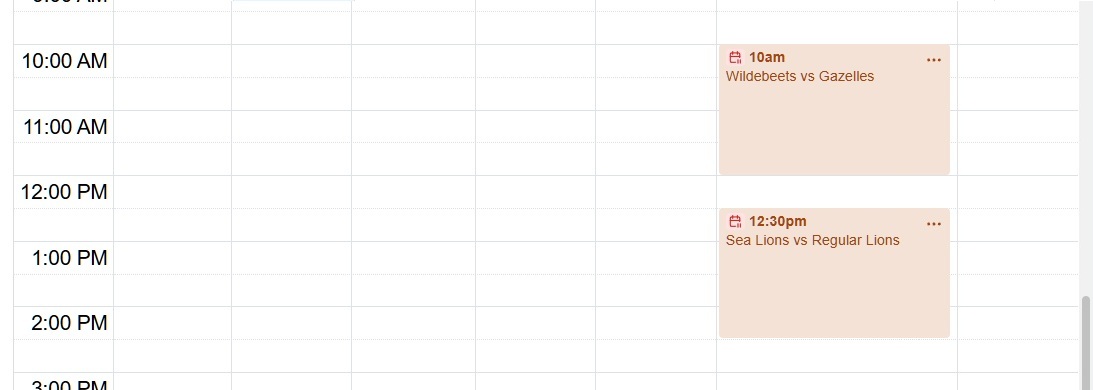
-
Publish the events
You can make whatever changes you want to events; those changes aren’t visible to your officials until you click “Publish.” (Later on, when you make changes to the roster, you’ll click “Publish” again to update the roster for your officials.)
-
Share the invite link and QR code
From the settings page we saw back in step 1, you can copy the invite link and then include it in your league’s email newsletter or a Slack channel for your officials.
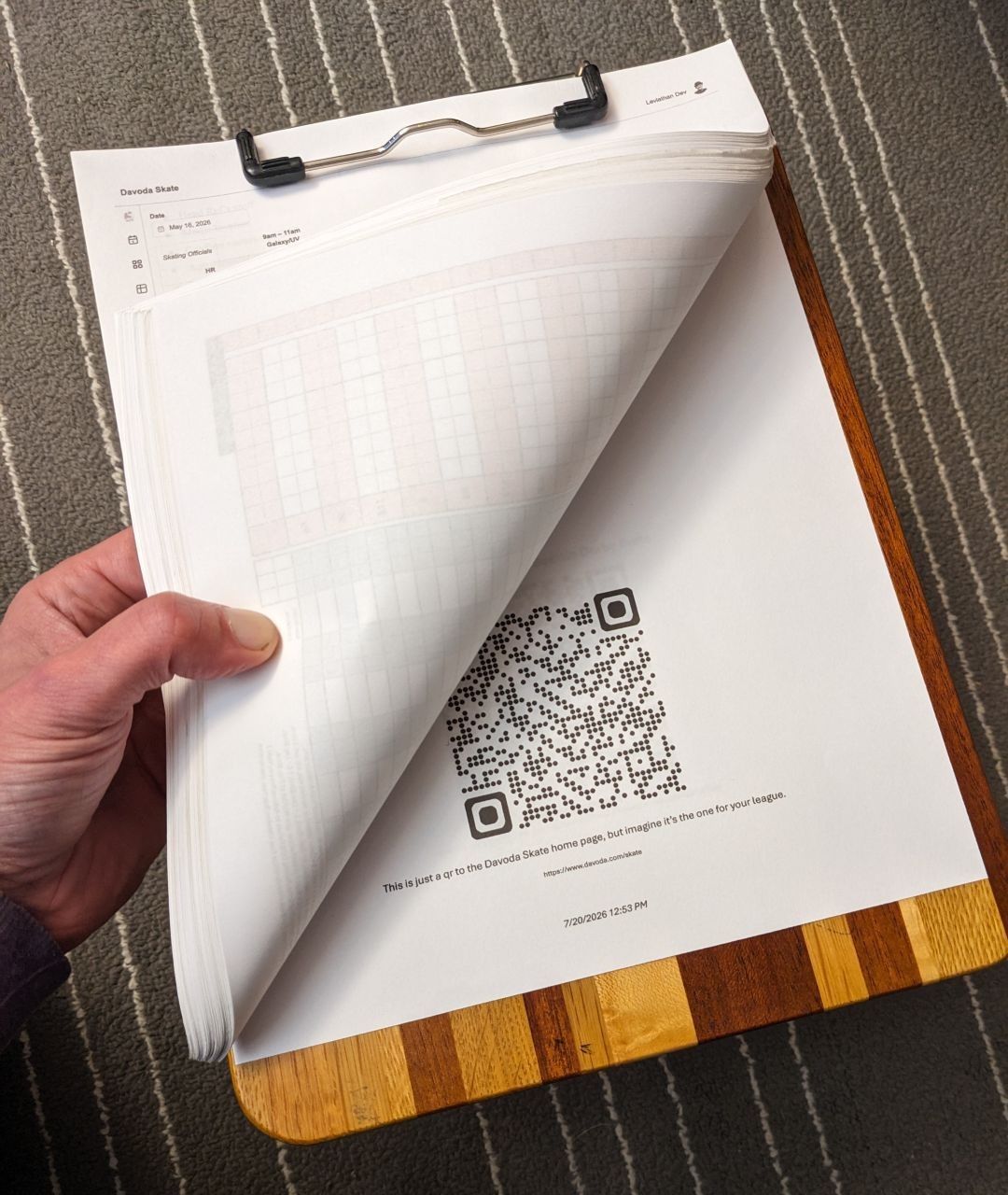
If you copy the QR code, you can post it in your green room or put it on your clipboard for officials to scan & get signed up, too. (if you’re reading this, there’s a good chance you’re the clipboard-carrying type. Like us.)
-
Set people’s skill levels
As officials join your league and sign up for events, you’ll see the number of unassigned people go up on the nav bar.

On the right side of your screen, you’ll see a People card with all your officials, but at this point you probably don’t have skill levels for any of them. So we’ll sort the list to show who’s signed up, and then set some skill levels for the roles that matter most.
(You can always come back and set more skill levels later.)
Sort officials to see who's signed up ...then click on a person to set their skill levels 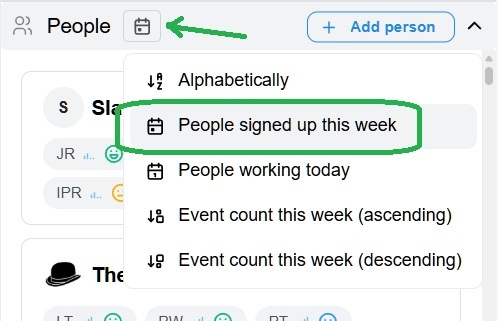
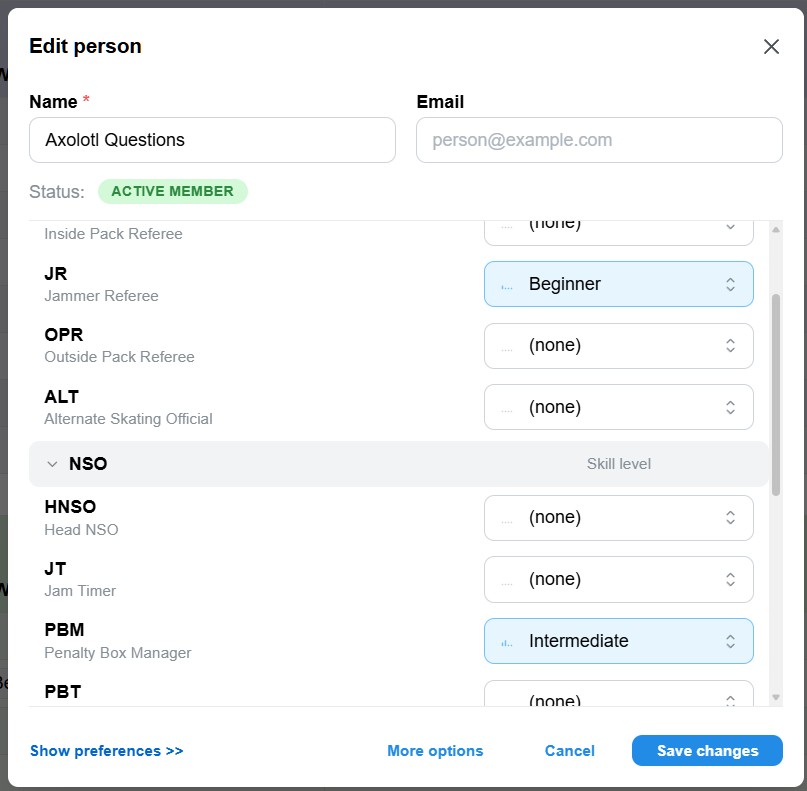
You can be as rigorous about this as you want to be, based on the kind of play your league does. “Expert” in a given role might mean a different thing for a recreational league than for a super-competitive league with travel teams.
If you have been keeping track of your officials’ skills already, you can import them from a CSV file instead of setting them one by one. Click “Import people” from the the People page in the left nav bar.
-
Assign shifts, and publish the roster
Here’s the magic – the reason Skate exists: click the “Assign shifts” button.

Skate turns all those signups, skill levels, and role preferences into the best roster available for each event based on your goals:
- if you’re running really high-level games and want the strongest people in each role
- if you’re running friends-and-family games and want to include the most people who signed up
- if you’re running some learning scrimmages and want people in the roles they most want to do
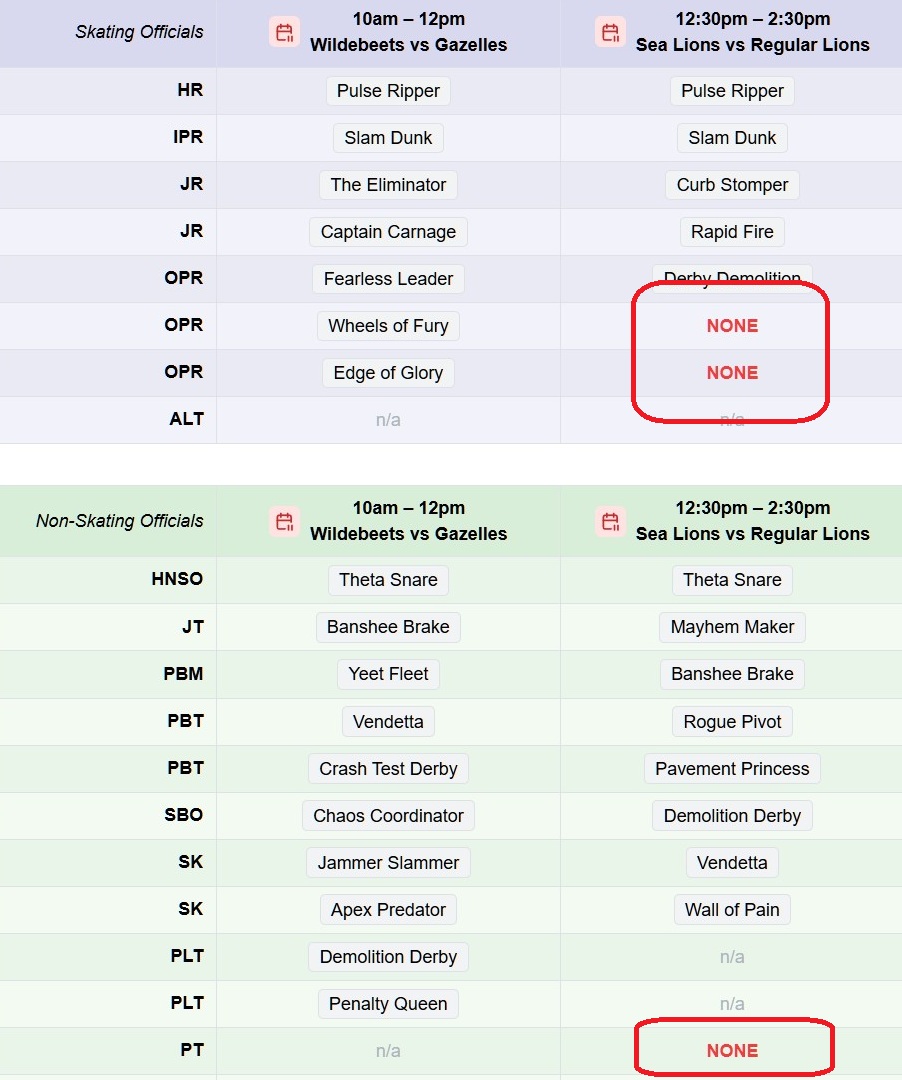
When you’re short on people, Skate’s role progressions will try to fill the most important roles first (like, to allocate a jam timer before a penalty tracker, and a second jam ref before the second or third OPR). Here’s an illustration:
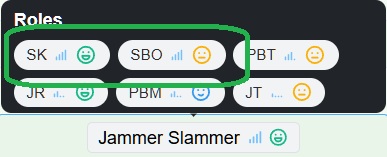
Pro tip: if you want to do a little tweaking to the assignments, first click the “show extra info” button (the little i in a circle) on the nav bar. You’ll see the proficiency and preference for each person in the role they’re in, and can see a tooltip of all their roles. That’s a handy way to quickly understand the implications of a swap.
Chaos is excited about scoreboard, but not that good at it ...so Jammer is a great person to have at the table with them 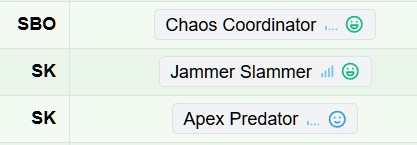
Once you’re happy with the roster, click “Publish” to make it visible to your officials. They’ll get an email with a link to see their assignments, and you can see the filled-in roster on the calendar and in the “My shifts” card.
-
Some extras
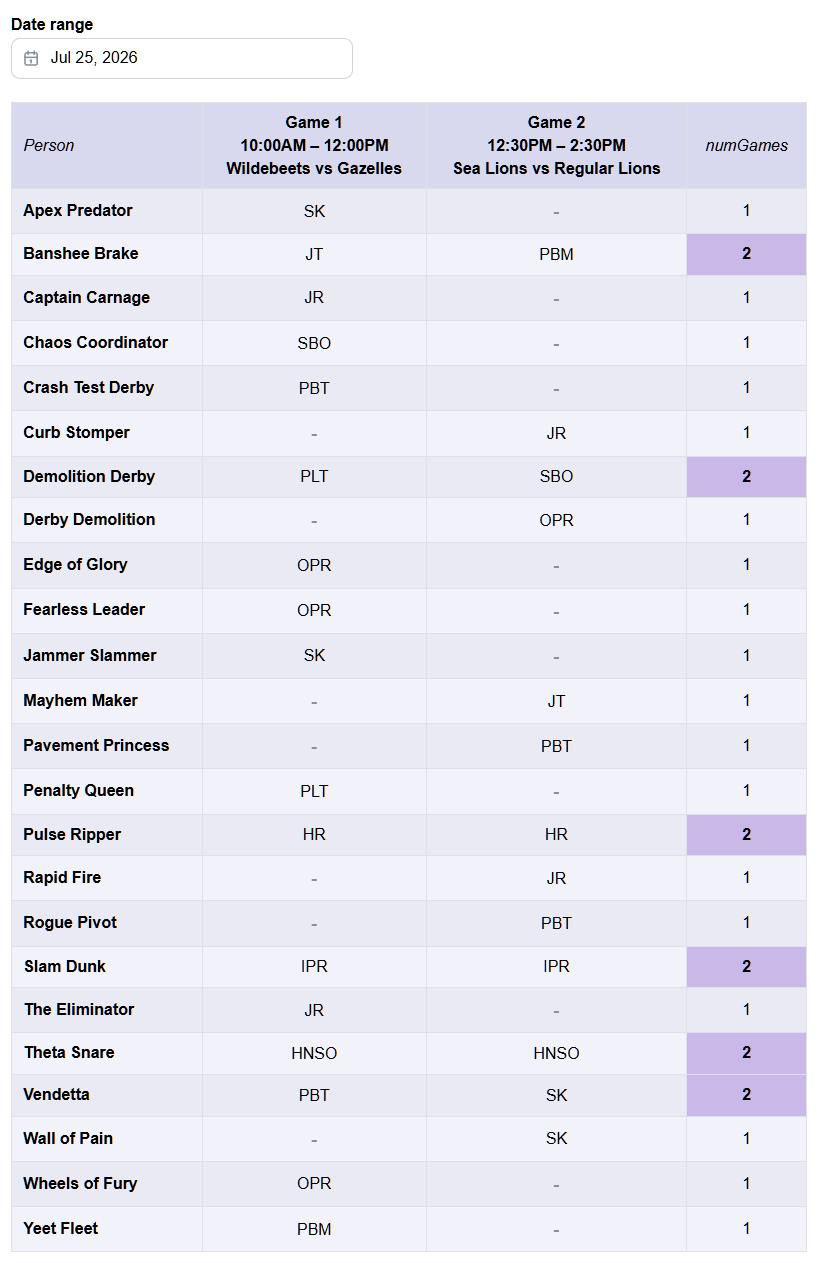
If you like to print out a roster for your announcers, or want to stick the roster and per-official pivot on the wall of your green room, those are easy, too. Click the icons on the left nav.
Printable roster Printable pivot view 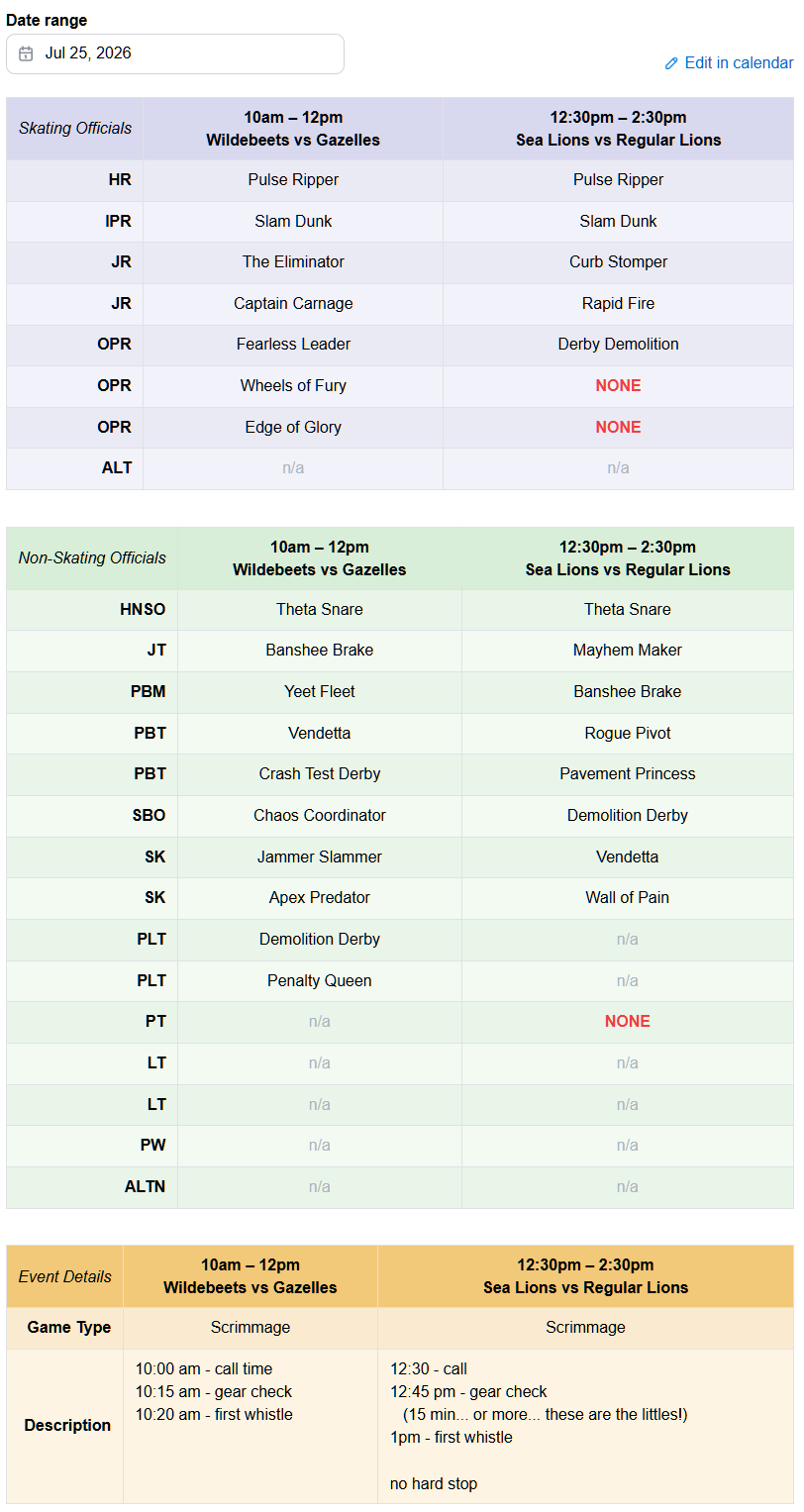
-
Oh, hey! You’re (probably) an official, too!
If you are a referee or NSO, you can also sign up for events, set your role ratings, and get placed on a roster like everyone else. Check out our guide for Refs and NSOs to see how that works.
(Some of the interface is different, but you have similar items in the side panel, and you can see your availability and assignments on the calendar and in the “My shifts” cards.)
What about scheduling outside derby?
Davoda does more than just derby. If you like the way Davoda Skate helps you with rosters for roller derby, Davoda Slate uses the same scheduling philosophy for broader business staffing, from event signup through on-the-day coverage and beyond.